Connect Excel to CRM Systems - 2026 Integration Guide
Jan 8, 2026
CRM Integration
Excel Automation
Business Productivity
CRM Integration
Excel Automation
Business Productivity
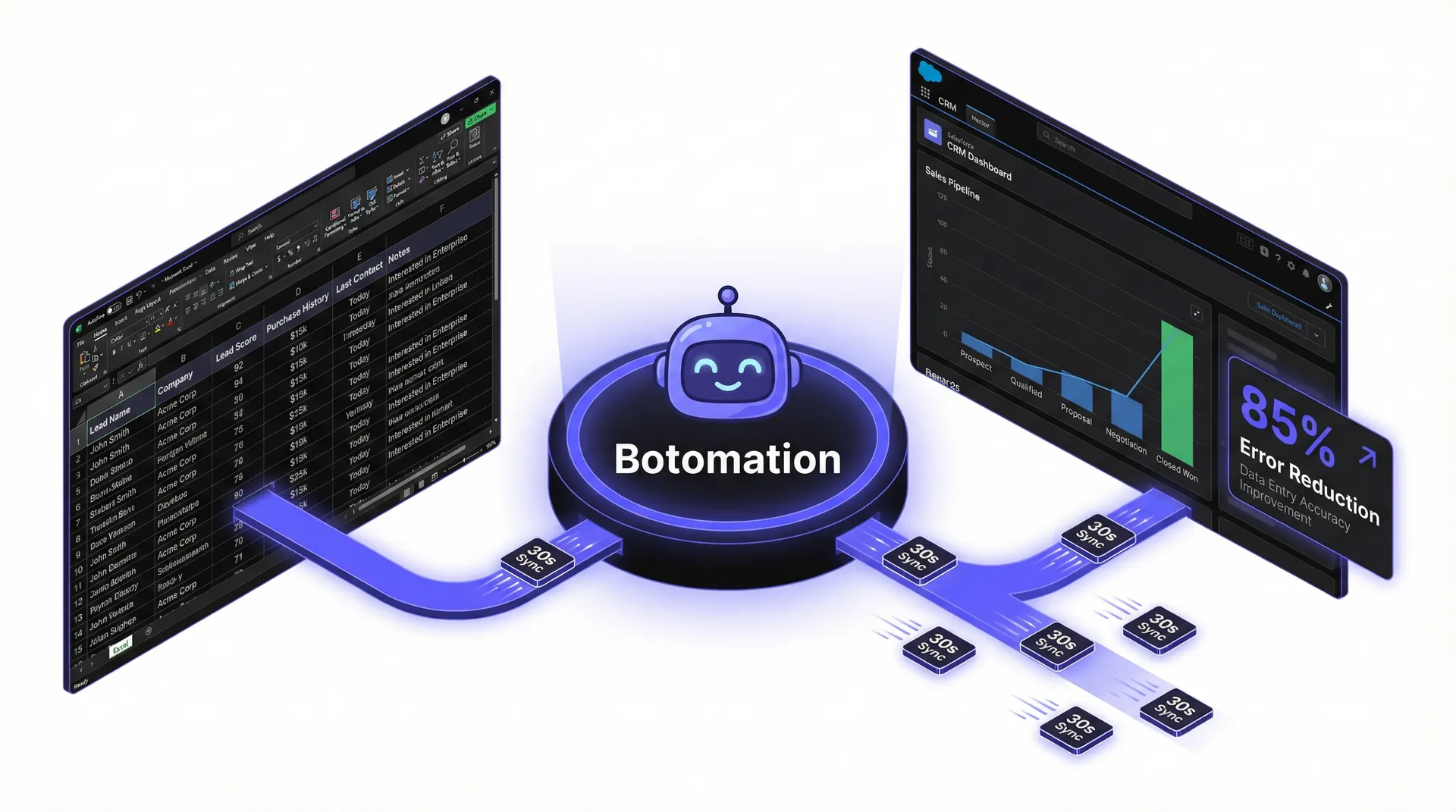
The morning routine for many operations managers starts with a familiar, albeit frustrating, ritual of navigating several browser tabs and a dozen spreadsheets. As you look for ways to connect Excel to CRM systems to streamline your workflow, you find yourself manually copying email addresses, lead scores, and purchase histories from a local Excel file into a CRM like Salesforce or HubSpot. This process is not just tedious; it is a significant drain on your company’s intellectual resources. By the time the clock hits noon, your team has likely spent hours on tasks that should have been handled by automated scripts. In 2026, the gap between static spreadsheets and dynamic customer relationship management systems has become a primary bottleneck for scaling businesses.
Recent industry data suggests that mid-market companies lose thousands of hours annually to manual data synchronization. When information lives in silos, the risk of human error skyrockets. A single typo in a contact’s phone number or a missed update on a deal’s status can result in lost revenue and fractured customer trust. Our team at Botomation frequently encounters businesses where the sales team is working off data that is forty-eight hours behind the marketing team’s spreadsheet. This lag is no longer a minor inconvenience; it is a competitive disadvantage in an era where speed of response is the most valuable currency.
Why Does Your Business Need to Connect Excel to CRM Systems?
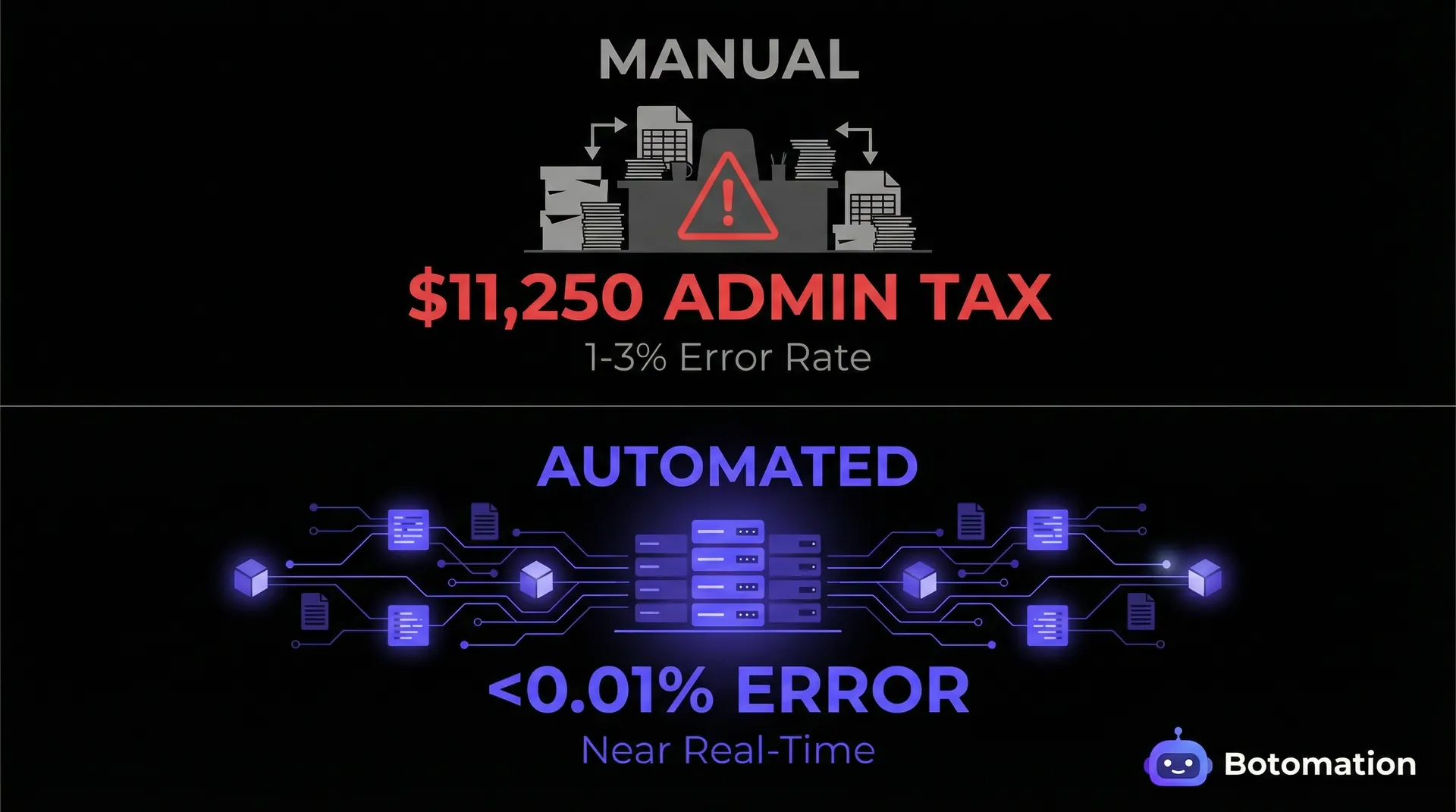
### 2026 Data Integration Statistics
* Global Productivity Loss: $1.2 Trillion annually attributed to data silos and manual entry.
* Manual Entry Error Rates: 1% to 3% per 1,000 records processed.
* Admin Time Savings: 5 to 8 hours saved per week per professional through automation.
* Lead Response Speed: 43% faster response times for teams using real-time synchronization.
The financial implications of disconnected data are staggering. According to 2026 industry reports, data silos and manual entry errors contribute to an estimated $1.2 trillion in lost productivity globally. Consider a typical administrative assistant earning a $45,000 base salary. When you add benefits and taxes, their total cost is roughly $56,250. If that employee spends just 20% of their time on manual data transfer, you are effectively burning over $11,000 every year on a task that offers zero strategic value.
We recently partnered with a logistics firm, Company X, that was struggling with this exact issue. They relied on Excel for complex shipping calculations but used a CRM to manage client interactions. Their staff spent nearly fifteen hours a week moving data back and forth. After our team implemented a structured integration using Zapier’s 2026 "Smart Mapping" suite, they saw an immediate 85% reduction in data entry errors. More importantly, their account managers regained nearly two full workdays per month to focus on client retention rather than administrative firefighting.
| Feature | Manual Entry (The Old Way) | Automated Integration (The Botomation Way) |
|---|---|---|
| Data Latency | 24 - 48 Hours | Near Real-Time (30 Seconds) |
| Error Probability | 1% to 3% per entry | Less than 0.01% |
| Staff Morale | Low (Repetitive Tasks) | High (Focus on Strategy) |
| Scalability | Limited by Headcount | Unlimited Growth Potential |
| Data Security | High Risk (Local Files) | Encrypted & Centralized |
Common Challenges with Disconnected Excel and CRM
When data remains trapped in local Excel files, the integrity of your entire database is at risk due to data silos. Recent studies have shown that manual data entry leads to a consistent error rate between 1% and 3%. While a 1% error rate might sound negligible, it means that for every 1,000 leads you process, ten of them have incorrect contact information or skewed deal values. Over a fiscal year, these small discrepancies compound into massive reporting inaccuracies that lead to poor executive decision-making.
Business Impact of Integration
The shift from manual processes to automated synchronization has a transformative effect on sales productivity. We observed this firsthand with Company Y, a professional services firm that integrated their custom Excel pricing calculators with their CRM. Before the integration, their sales team spent hours re-entering quote data into client profiles. After our experts streamlined the workflow, their sales productivity increased by 23% within the first quarter.
What Are the Best Tools to Connect Excel to CRM Systems in 2026?

The market for integration tools has matured significantly, offering options that range from no-code interfaces to deep API-level connections. In 2026, the choice of tool often depends on the complexity of your data and the volume of records you handle. Microsoft Power Automate remains a heavy hitter, especially for businesses already entrenched in the Office 365 ecosystem.
Microsoft Power Automate has recently released API version 2.5, which significantly improves the stability of Excel Online connectors. On the other hand, Zapier has introduced "Smart Mapping," an AI-driven feature that automatically suggests field matches between Excel columns and CRM properties, reducing the setup time for complex integrations from hours to minutes.
Microsoft Power Automate for Excel to CRM
Power Automate API v2.5 is a significant leap forward for back-office automation. With over 500 native connectors, it allows for a direct bridge between Excel Online and almost every major CRM on the market. The setup process involves creating a "Flow" that triggers whenever a new row is added to a specific Excel table. Our team prefers this method for clients who require high security, as it keeps the data within the Microsoft environment.
Third Party Integration Tools
Zapier continues to be the most user-friendly option for small to mid-sized businesses. The 2026 updates to Zapier have focused on "Multi-Step Zaps" that can handle complex data transformations before the information ever reaches the CRM. Coherent Spark version 3.2 has also emerged as a powerful contender, specifically for businesses that use Excel as a calculation engine. Coherent Spark allows you to turn those Excel formulas into an API that your CRM can call in real-time.
API Based Solutions
For organizations with high-volume data needs, a direct API integration is often the most robust solution. The Google Sheets API v4 is frequently used as a middle ground for real-time synchronization. When paired with the Salesforce REST API (2026-01 version), businesses can achieve a level of performance that middleware tools simply cannot match, allowing you to sync thousands of records in a single call.
What Is the Step-by-Step Process to Integrate Excel with Your CRM?
Successfully connecting Excel to your CRM requires more than just picking a tool; it requires a disciplined approach to data architecture. If you try to sync a messy spreadsheet, you will simply end up with a messy CRM. The preparation phase is the most critical part of the entire process. You must ensure that your data is normalized, meaning that every column follows a consistent format and every row represents a unique record.
Preparing Your Excel Data for Integration
Before you even open an integration tool, you must clean your Excel data. This involves removing duplicate rows, ensuring that all email addresses are valid, and standardizing categorical data. We recommend using Excel’s "Power Query" feature to perform these cleaning steps automatically. Field mapping is another area where precision is paramount. You need to decide which system will be the "Source of Truth."
Setting Up the Connection Process
Once your data is prepared, the actual connection in a tool like Power Automate or Zapier is relatively straightforward:
- Authenticate Accounts: Connect your Excel and CRM accounts via OAuth 2.1.
- Select the Trigger: Choose "When a row is added or modified" in your Excel table.
- Define the Action: Select your CRM and choose the "Create or Update Contact" action.
- Map the Fields: Match your Excel columns to the corresponding CRM properties.
- Add Logic: Include a "Filter" step to ensure only valid data is synced.
- Test the Flow: Run a test record to verify accuracy.
How Do You Automate Data Transfer Between Excel and CRM Systems?
The real magic happens when you move from manual syncing to true automation. In 2026, the debate between real-time sync and scheduled updates has largely been settled in favor of real-time processing. Scheduled updates often lead to "data collisions" where two people update the same record in different systems at the same time. Real-time synchronization eliminates this risk.
Configuring Real-Time Data Synchronization
Technical specifications for real-time sync have improved drastically this year. Most modern APIs now support "Webhooks," which allow the source system to "push" data to the destination as soon as a change occurs. When we set up real-time sync for our clients, we aim for API calls every 30 seconds or less. This ensures that the data is as fresh as possible without overwhelming the CRM’s API rate limits.
Setting Up Automation Workflows
Automation workflows go beyond simple data transfer; they incorporate business logic into the sync process. For example, you can set up a "Conditional Sync" where only leads from a specific industry are moved from Excel to the CRM. Company A, an industrial equipment supplier, used our automation services to build a workflow that triggered a "Task" in their CRM whenever an equipment's maintenance date was within thirty days, reducing admin tasks and automating 78% of their manual follow-up tasks.
How Do You Overcome Common Integration Challenges?
Even with the best tools, integrations can run into hurdles. Data mapping errors are the most frequent culprit, often caused by mismatched data types. Security is another major concern, especially with the introduction of new data protection regulations in early 2026. The shift to OAuth 2.1 protocols has made connections more secure, but it also requires more careful management of permissions.
Security and Data Privacy Considerations
In 2026, compliance is not optional. Encryption is now the standard; all data in transit must be protected by TLS 1.3 or higher. Furthermore, you must have a clear "Data Audit Trail" that shows exactly when a record was moved and who authorized the transfer. Access control is another vital layer; we recommend a tiered access model where only a few key individuals can modify the integration logic.
Performance Optimization
Handling large Excel files with 50,000+ rows requires a different approach than syncing a small contact list. The solution is "Batch Processing," where the integration tool collects a group of updates and sends them as a single large request. To optimize performance, our experts implement "Throttling" logic that monitors your API usage in real-time to prevent lockouts during peak activity.
What Are the Most Frequently Asked Questions About Excel-CRM Integration?
Can I connect a local Excel file on my computer to a CRM?
While technically possible using certain gateways, it is not recommended for 2026 workflows. Local files are prone to being moved or renamed, which breaks the connection. The best practice is to host your Excel file in a cloud environment like OneDrive or SharePoint to ensure a stable, 24/7 connection.
What happens if I delete a row in Excel?
By default, most integrations are set to "Add" or "Update" records to prevent accidental data loss. If you want a deletion in Excel to trigger a deletion in the CRM, you must specifically configure a "Delete" action, a process we cover extensively in our CRM email integration guide. We generally recommend "Archiving" records instead of permanent deletion.
How much does it cost to automate the Excel to CRM connection?
Basic no-code tools start around $20-$50 per month. However, for a professional implementation including data cleaning and custom logic, the investment is higher. The ROI is usually realized within thirty days by saving significant staff hours.
Do I need to be a programmer to set this up?
For simple mapping, no-code tools are sufficient for business users. However, for complex data structures or high-volume syncing, the DIY approach can lead to "Integration Debt." Partnering with experts ensures a robust, enterprise-grade solution.
Is my data safe during the transfer?
Yes, provided you use modern tools and protocols. In 2026, reputable platforms use end-to-end encryption and OAuth 2.1 for authentication, ensuring your data is never stored in plain text and your passwords remain secure.
The transition from manual data entry to a fully synchronized ecosystem is the most impactful change a service-based business can make in 2026. By connecting your Excel sheets to your CRM, you are building a foundation for scalable growth.
In the competitive landscape of 2026, you cannot afford to have your best people acting as human bridges between disconnected software tools. The cost of inaction is too high, and the benefits of automation are too significant to ignore.
Ready to automate your growth? Stop losing money on manual tasks and let our experts build a frictionless data engine for your business. Book a call below.
The morning routine for many operations managers starts with a familiar, albeit frustrating, ritual of navigating several browser tabs and a dozen spreadsheets. As you look for ways to connect Excel to CRM systems to streamline your workflow, you find yourself manually copying email addresses, lead scores, and purchase histories from a local Excel file into a CRM like Salesforce or HubSpot. This process is not just tedious; it is a significant drain on your company’s intellectual resources. By the time the clock hits noon, your team has likely spent hours on tasks that should have been handled by automated scripts. In 2026, the gap between static spreadsheets and dynamic customer relationship management systems has become a primary bottleneck for scaling businesses.
Recent industry data suggests that mid-market companies lose thousands of hours annually to manual data synchronization. When information lives in silos, the risk of human error skyrockets. A single typo in a contact’s phone number or a missed update on a deal’s status can result in lost revenue and fractured customer trust. Our team at Botomation frequently encounters businesses where the sales team is working off data that is forty-eight hours behind the marketing team’s spreadsheet. This lag is no longer a minor inconvenience; it is a competitive disadvantage in an era where speed of response is the most valuable currency.
Why Does Your Business Need to Connect Excel to CRM Systems?
### 2026 Data Integration Statistics
* Global Productivity Loss: $1.2 Trillion annually attributed to data silos and manual entry.
* Manual Entry Error Rates: 1% to 3% per 1,000 records processed.
* Admin Time Savings: 5 to 8 hours saved per week per professional through automation.
* Lead Response Speed: 43% faster response times for teams using real-time synchronization.
The financial implications of disconnected data are staggering. According to 2026 industry reports, data silos and manual entry errors contribute to an estimated $1.2 trillion in lost productivity globally. Consider a typical administrative assistant earning a $45,000 base salary. When you add benefits and taxes, their total cost is roughly $56,250. If that employee spends just 20% of their time on manual data transfer, you are effectively burning over $11,000 every year on a task that offers zero strategic value.
We recently partnered with a logistics firm, Company X, that was struggling with this exact issue. They relied on Excel for complex shipping calculations but used a CRM to manage client interactions. Their staff spent nearly fifteen hours a week moving data back and forth. After our team implemented a structured integration using Zapier’s 2026 "Smart Mapping" suite, they saw an immediate 85% reduction in data entry errors. More importantly, their account managers regained nearly two full workdays per month to focus on client retention rather than administrative firefighting.
| Feature | Manual Entry (The Old Way) | Automated Integration (The Botomation Way) |
|---|---|---|
| Data Latency | 24 - 48 Hours | Near Real-Time (30 Seconds) |
| Error Probability | 1% to 3% per entry | Less than 0.01% |
| Staff Morale | Low (Repetitive Tasks) | High (Focus on Strategy) |
| Scalability | Limited by Headcount | Unlimited Growth Potential |
| Data Security | High Risk (Local Files) | Encrypted & Centralized |
Common Challenges with Disconnected Excel and CRM
When data remains trapped in local Excel files, the integrity of your entire database is at risk due to data silos. Recent studies have shown that manual data entry leads to a consistent error rate between 1% and 3%. While a 1% error rate might sound negligible, it means that for every 1,000 leads you process, ten of them have incorrect contact information or skewed deal values. Over a fiscal year, these small discrepancies compound into massive reporting inaccuracies that lead to poor executive decision-making.
Business Impact of Integration
The shift from manual processes to automated synchronization has a transformative effect on sales productivity. We observed this firsthand with Company Y, a professional services firm that integrated their custom Excel pricing calculators with their CRM. Before the integration, their sales team spent hours re-entering quote data into client profiles. After our experts streamlined the workflow, their sales productivity increased by 23% within the first quarter.
What Are the Best Tools to Connect Excel to CRM Systems in 2026?
The market for integration tools has matured significantly, offering options that range from no-code interfaces to deep API-level connections. In 2026, the choice of tool often depends on the complexity of your data and the volume of records you handle. Microsoft Power Automate remains a heavy hitter, especially for businesses already entrenched in the Office 365 ecosystem.
Microsoft Power Automate has recently released API version 2.5, which significantly improves the stability of Excel Online connectors. On the other hand, Zapier has introduced "Smart Mapping," an AI-driven feature that automatically suggests field matches between Excel columns and CRM properties, reducing the setup time for complex integrations from hours to minutes.
Microsoft Power Automate for Excel to CRM
Power Automate API v2.5 is a significant leap forward for back-office automation. With over 500 native connectors, it allows for a direct bridge between Excel Online and almost every major CRM on the market. The setup process involves creating a "Flow" that triggers whenever a new row is added to a specific Excel table. Our team prefers this method for clients who require high security, as it keeps the data within the Microsoft environment.
Third Party Integration Tools
Zapier continues to be the most user-friendly option for small to mid-sized businesses. The 2026 updates to Zapier have focused on "Multi-Step Zaps" that can handle complex data transformations before the information ever reaches the CRM. Coherent Spark version 3.2 has also emerged as a powerful contender, specifically for businesses that use Excel as a calculation engine. Coherent Spark allows you to turn those Excel formulas into an API that your CRM can call in real-time.
API Based Solutions
For organizations with high-volume data needs, a direct API integration is often the most robust solution. The Google Sheets API v4 is frequently used as a middle ground for real-time synchronization. When paired with the Salesforce REST API (2026-01 version), businesses can achieve a level of performance that middleware tools simply cannot match, allowing you to sync thousands of records in a single call.
What Is the Step-by-Step Process to Integrate Excel with Your CRM?
Successfully connecting Excel to your CRM requires more than just picking a tool; it requires a disciplined approach to data architecture. If you try to sync a messy spreadsheet, you will simply end up with a messy CRM. The preparation phase is the most critical part of the entire process. You must ensure that your data is normalized, meaning that every column follows a consistent format and every row represents a unique record.
Preparing Your Excel Data for Integration
Before you even open an integration tool, you must clean your Excel data. This involves removing duplicate rows, ensuring that all email addresses are valid, and standardizing categorical data. We recommend using Excel’s "Power Query" feature to perform these cleaning steps automatically. Field mapping is another area where precision is paramount. You need to decide which system will be the "Source of Truth."
Setting Up the Connection Process
Once your data is prepared, the actual connection in a tool like Power Automate or Zapier is relatively straightforward:
- Authenticate Accounts: Connect your Excel and CRM accounts via OAuth 2.1.
- Select the Trigger: Choose "When a row is added or modified" in your Excel table.
- Define the Action: Select your CRM and choose the "Create or Update Contact" action.
- Map the Fields: Match your Excel columns to the corresponding CRM properties.
- Add Logic: Include a "Filter" step to ensure only valid data is synced.
- Test the Flow: Run a test record to verify accuracy.
How Do You Automate Data Transfer Between Excel and CRM Systems?
The real magic happens when you move from manual syncing to true automation. In 2026, the debate between real-time sync and scheduled updates has largely been settled in favor of real-time processing. Scheduled updates often lead to "data collisions" where two people update the same record in different systems at the same time. Real-time synchronization eliminates this risk.
Configuring Real-Time Data Synchronization
Technical specifications for real-time sync have improved drastically this year. Most modern APIs now support "Webhooks," which allow the source system to "push" data to the destination as soon as a change occurs. When we set up real-time sync for our clients, we aim for API calls every 30 seconds or less. This ensures that the data is as fresh as possible without overwhelming the CRM’s API rate limits.
Setting Up Automation Workflows
Automation workflows go beyond simple data transfer; they incorporate business logic into the sync process. For example, you can set up a "Conditional Sync" where only leads from a specific industry are moved from Excel to the CRM. Company A, an industrial equipment supplier, used our automation services to build a workflow that triggered a "Task" in their CRM whenever an equipment's maintenance date was within thirty days, reducing admin tasks and automating 78% of their manual follow-up tasks.
How Do You Overcome Common Integration Challenges?
Even with the best tools, integrations can run into hurdles. Data mapping errors are the most frequent culprit, often caused by mismatched data types. Security is another major concern, especially with the introduction of new data protection regulations in early 2026. The shift to OAuth 2.1 protocols has made connections more secure, but it also requires more careful management of permissions.
Security and Data Privacy Considerations
In 2026, compliance is not optional. Encryption is now the standard; all data in transit must be protected by TLS 1.3 or higher. Furthermore, you must have a clear "Data Audit Trail" that shows exactly when a record was moved and who authorized the transfer. Access control is another vital layer; we recommend a tiered access model where only a few key individuals can modify the integration logic.
Performance Optimization
Handling large Excel files with 50,000+ rows requires a different approach than syncing a small contact list. The solution is "Batch Processing," where the integration tool collects a group of updates and sends them as a single large request. To optimize performance, our experts implement "Throttling" logic that monitors your API usage in real-time to prevent lockouts during peak activity.
What Are the Most Frequently Asked Questions About Excel-CRM Integration?
Can I connect a local Excel file on my computer to a CRM?
While technically possible using certain gateways, it is not recommended for 2026 workflows. Local files are prone to being moved or renamed, which breaks the connection. The best practice is to host your Excel file in a cloud environment like OneDrive or SharePoint to ensure a stable, 24/7 connection.
What happens if I delete a row in Excel?
By default, most integrations are set to "Add" or "Update" records to prevent accidental data loss. If you want a deletion in Excel to trigger a deletion in the CRM, you must specifically configure a "Delete" action, a process we cover extensively in our CRM email integration guide. We generally recommend "Archiving" records instead of permanent deletion.
How much does it cost to automate the Excel to CRM connection?
Basic no-code tools start around $20-$50 per month. However, for a professional implementation including data cleaning and custom logic, the investment is higher. The ROI is usually realized within thirty days by saving significant staff hours.
Do I need to be a programmer to set this up?
For simple mapping, no-code tools are sufficient for business users. However, for complex data structures or high-volume syncing, the DIY approach can lead to "Integration Debt." Partnering with experts ensures a robust, enterprise-grade solution.
Is my data safe during the transfer?
Yes, provided you use modern tools and protocols. In 2026, reputable platforms use end-to-end encryption and OAuth 2.1 for authentication, ensuring your data is never stored in plain text and your passwords remain secure.
The transition from manual data entry to a fully synchronized ecosystem is the most impactful change a service-based business can make in 2026. By connecting your Excel sheets to your CRM, you are building a foundation for scalable growth.
In the competitive landscape of 2026, you cannot afford to have your best people acting as human bridges between disconnected software tools. The cost of inaction is too high, and the benefits of automation are too significant to ignore.
Ready to automate your growth? Stop losing money on manual tasks and let our experts build a frictionless data engine for your business. Book a call below.
Get Started
Book a FREE Consultation Right NOW!
Schedule a Call with Our Team To Make Your Business More Efficient with AI Instantly.
Read More
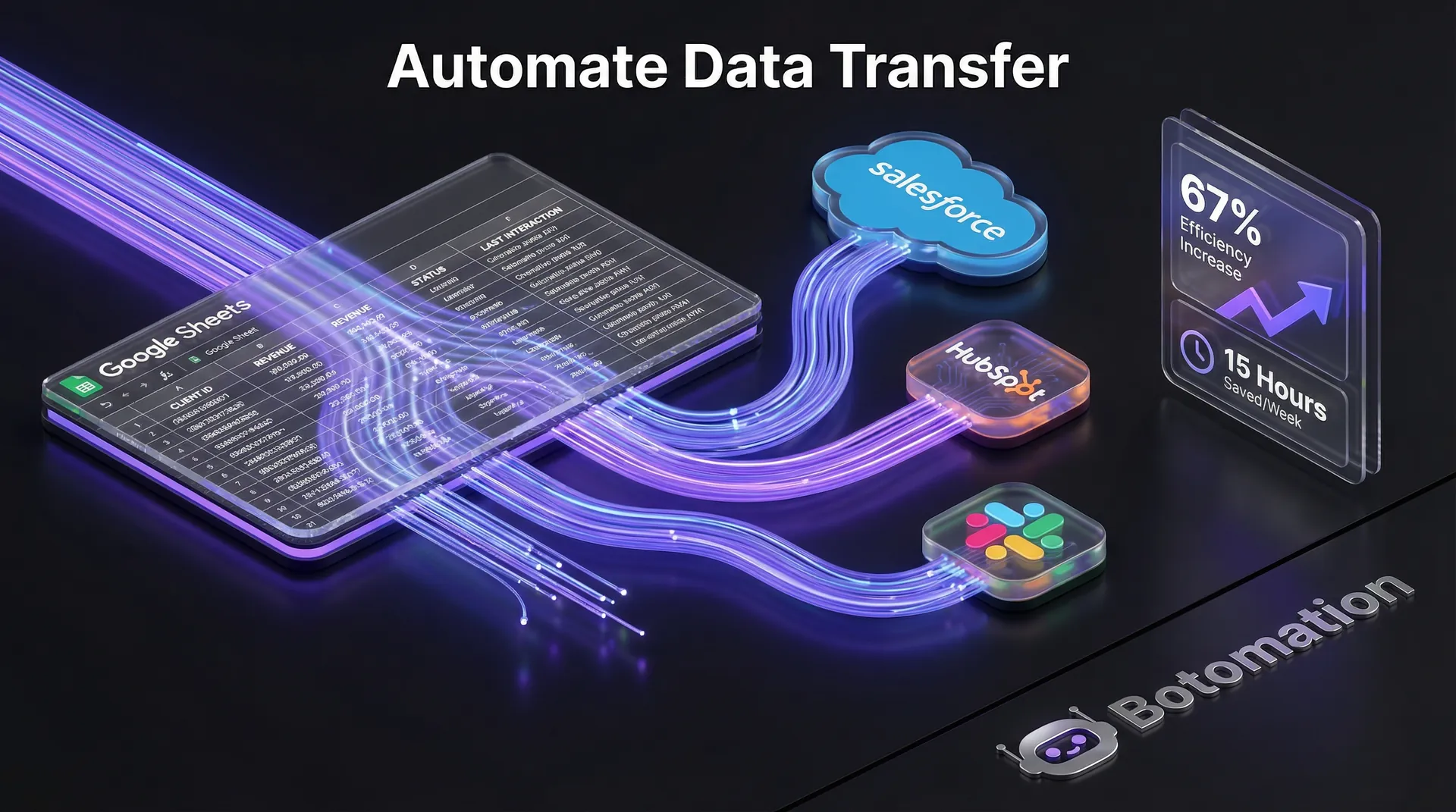
Connect Excel to CRM Systems - 2026 Integration Guide
Learn how to connect Excel to CRM systems to automate data sync, eliminate manual entry, and boost productivity with Zapier or Power Automate in 2026.
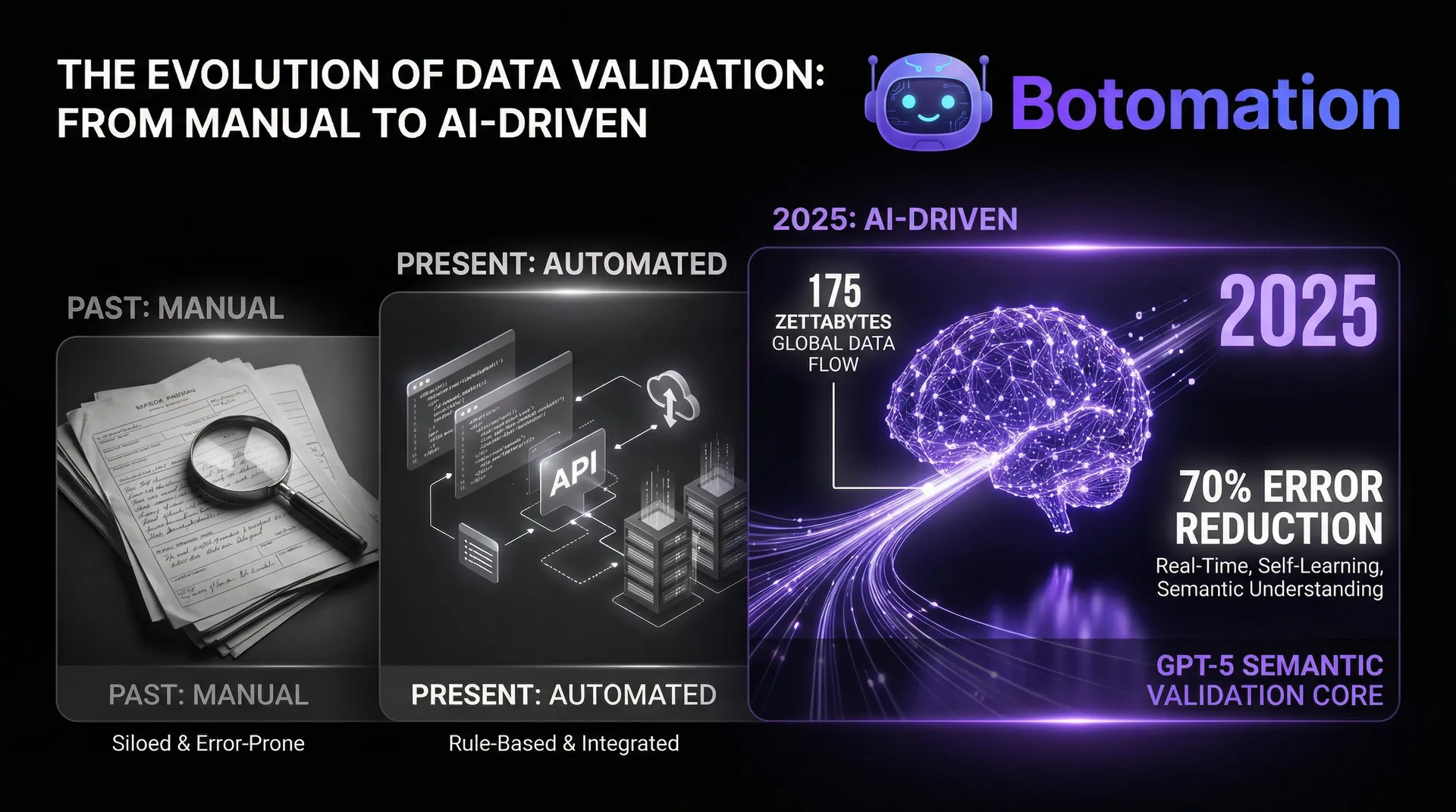
Data Entry Validation Best Practices 2026 Expert Guide
Learn how WhatsApp AI slashes support costs for e-commerce & SaaS. Proven strategies to boost sales, recover carts, and scale 24/7 service.